
Create and edit a task#
- Select a project or Inbox and enter a title in the task field. Use a concrete action, such as Send the draft to Alex.
- Open the card or row to see Task details.
- Add the relevant details and choose Save. Use Cancel to discard unsaved form changes.
Use the detail fields#
- Title
- Describe the outcome or next action. Keep one main task per card.
- Project and column
- Choose where the task belongs and its current stage.
- Due date
- Turn on Due date and choose a calendar date. Use it for deadlines rather than as a substitute for priority.
- Priority and Flagged
- Set priority for relative importance; flag tasks you want in the Flagged smart list.
- Tags
- Enter tags separated by commas, for example errands, weekend. Search for them later.
- Link
- Save the web address associated with the task.
- Assigned to
- On projects with assignment controls, select a project member or Unassigned. Members must already belong to that project.
Notes and checklists#
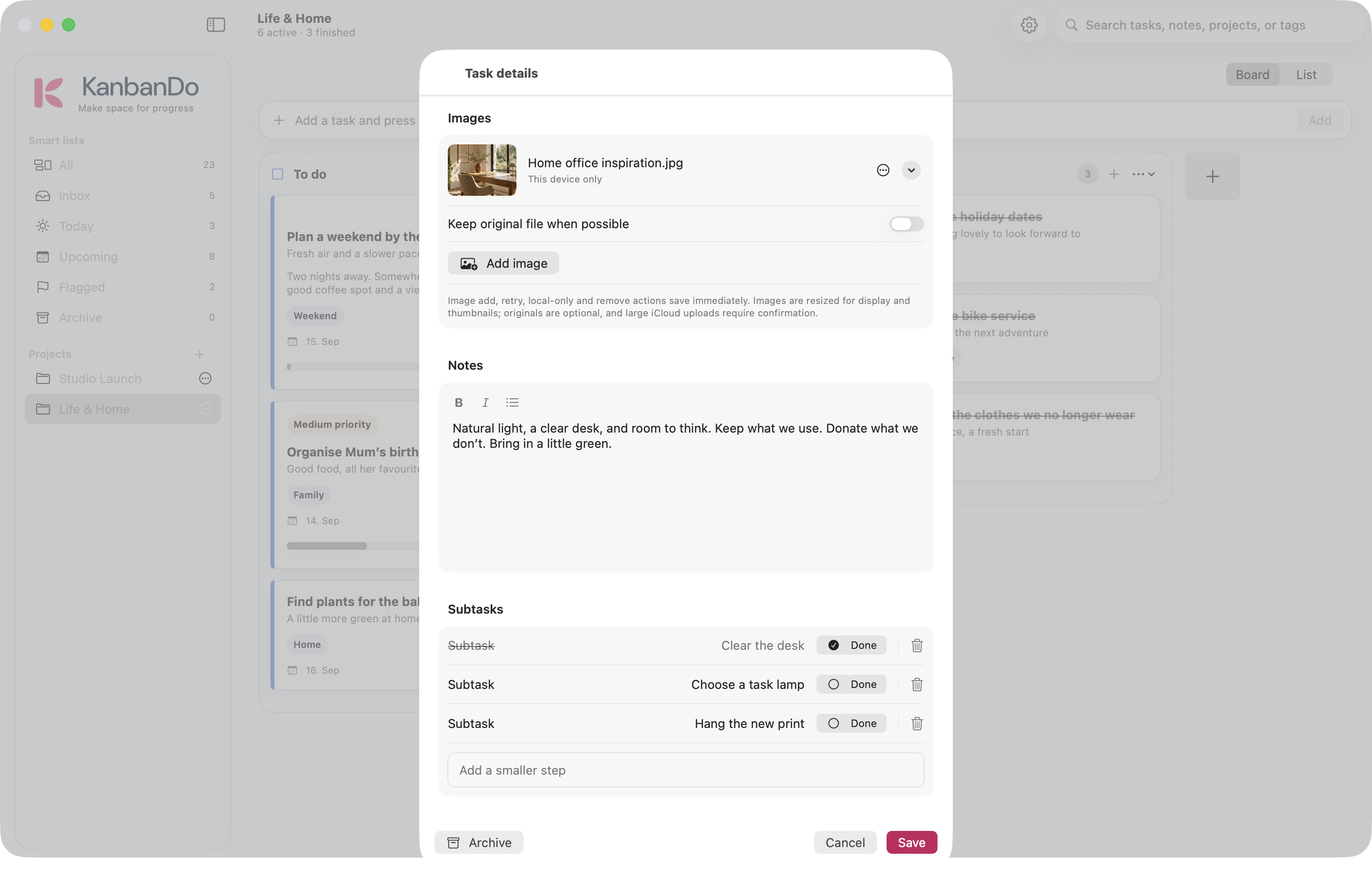
Write context, decisions, and reference information in Notes. The formatting controls offer bold, italic, and a bulleted list. In Subtasks, add smaller steps and mark each done independently. A checklist is useful for “Prepare guest room”: wash linen, make bed, leave fresh towels.
Use the task’s move menu for Convert to subtask or Merge into task when available. A task with its own subtasks uses merge rather than conversion. Review the target task before applying the action.
Add and manage images#
In Images, choose Add image. Open an image thumbnail to inspect it, zoom, or view the original when available. The app creates display and thumbnail versions. Use Keep original file when possible if you need the original, and Keep new image on this device only when it should stay local.
For a failed upload, use Retry upload. A local-only image does not appear on another device just because its task belongs to an iCloud project. Large cloud image uploads may ask you to confirm an optimized version.
Finish, archive, or delete#
Move a task to Done to show it is finished. Archive removes it from your active working views while retaining it in Archive. Deleting a task is a separate action in its details. Use archive when you want to keep the history; make a backup before deleting work you may need later.