
Device-only or iCloud?#
| Storage | Where it is available | Sharing |
|---|---|---|
| Device-only project | This device | Local use |
| iCloud project | Your devices signed into the relevant Apple Account, after sync | Can be shared with participants |
| Inbox | This device | File items into an iCloud project to sync them |
iCloud requires an Apple Account, enabled iCloud access, network connectivity, and available iCloud storage. The app does not operate its own project-content hosting service.
Invite someone to a project#
- Open or create an iCloud project. Device-only projects cannot be shared as cloud projects.
- Open the project’s people or collaboration controls and choose the sharing action.
- Use Apple’s sharing sheet to invite the intended people. Review who can access the project and whether they can edit.
- Have the recipient accept the invitation and open it with KanbanDo.
- Confirm the project appears for the recipient. Add a small test task if you want to verify collaboration together.
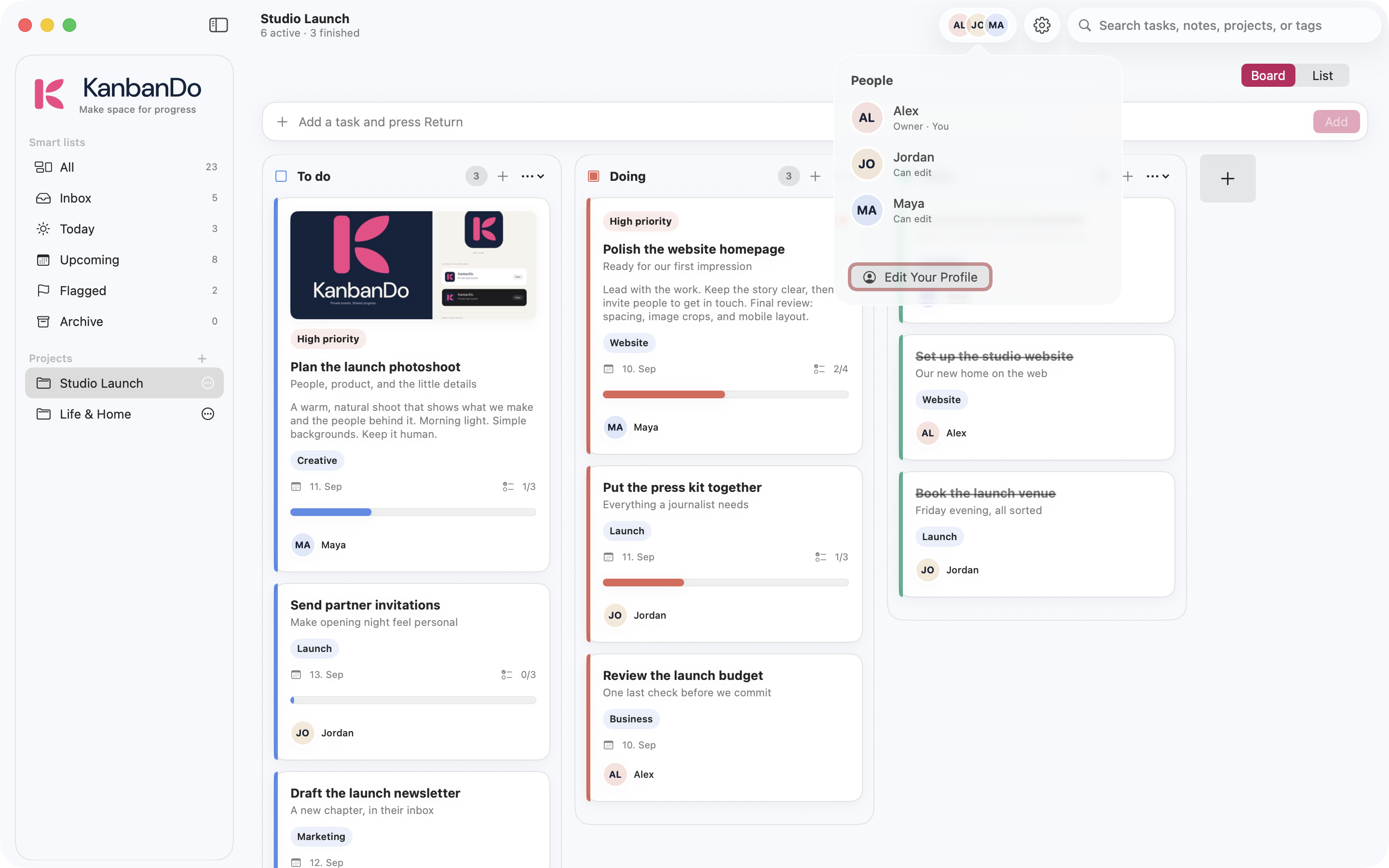
Owners, editors, and viewers#
Owners manage their shared project. Editors can change tasks where permissions allow; viewers can read but cannot write. If a control is unavailable, check your role before troubleshooting the device. Assigning a task does not itself invite that person or change their permissions.
Use Edit Your Profile in the people controls to set a display name and optional photo. Initials appear when no photo is selected.
Know when work has synchronized#
Local saves and iCloud synchronization are separate steps. Keep the app open while checking a change on another device. Use Retry sync from the project’s actions if offered, then inspect Settings for errors or conflicts. An AI tool succeeding means the app saved the change locally; it does not prove the phone has received it yet.
When the app asks you to review a conflict, read both versions before choosing Keep current, Use my edit, Keep iCloud version, or Keep my version. If the Apple Account changes, confirm the intended account in Settings before resuming.
Leave or stop sharing#
Use the collaboration actions appropriate to your role. Leaving a project as a participant and deleting it as its owner have different effects. Read the confirmation before proceeding, and export a backup if the content must be retained. For trouble accepting an invitation, see troubleshooting.