
Start with a connection prompt#
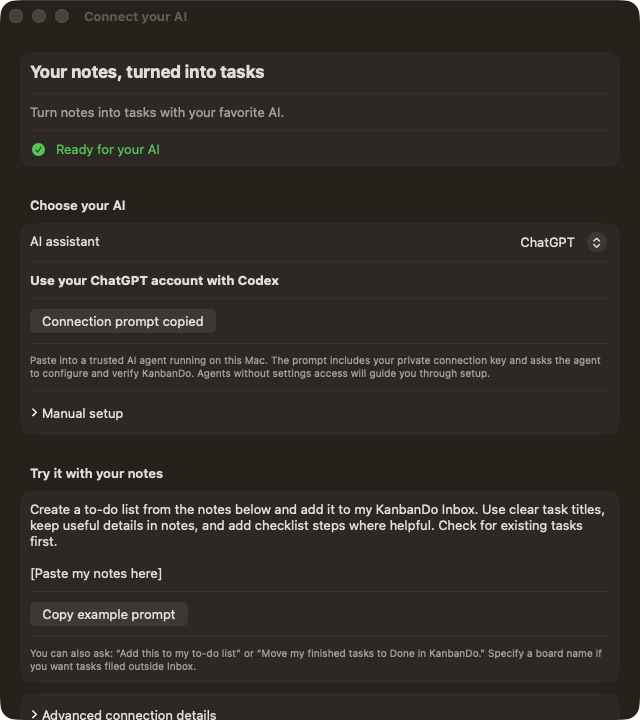
- Open KanbanDo on your Mac. Choose KanbanDo → Connect your AI…, or open it from Settings → AI connections.
- Wait for Ready for your AI. If access is off, enable Let AI help with my tasks in Settings.
- Select your AI, then choose Copy connection prompt.
- Paste into the selected trusted desktop agent on this Mac. The prompt includes the installed executable path, your private connection key, and instructions to preserve existing settings.
- Let the agent configure the local MCP entry if it has access. Otherwise follow the manual steps it gives you. Review any tool approval prompt in the client.
- Restart or reload the client if requested. Ask it to list KanbanDo tools and boards before changing tasks.
Choose the right client#
| Choose in KanbanDo | Use this client | Manual configuration |
|---|---|---|
| Claude | Claude Desktop | claude_desktop_config.json |
| ChatGPT | Codex desktop or CLI | ~/.codex/config.toml |
| Gemini | Gemini CLI | ~/.gemini/settings.json |
| Grok / Grokbot | Grok Build | ~/.grok/config.toml |
| Copilot | GitHub Copilot in VS Code | User MCP configuration, servers |
| DeepSeek | Cline in VS Code with a DeepSeek model | Cline MCP settings, mcpServers |
These are client routes, not interchangeable model names. A Claude model selected inside Copilot still uses Copilot’s configuration. The ChatGPT selection generates Codex settings; it does not automatically connect a consumer chat window.
Manual setup#
- Expand Manual setup in Connect your AI. Choose Set up… to select the client’s settings file; KanbanDo merges its entry while preserving other settings.
- Alternatively expand Step-by-step setup and Configuration to paste. Copy the generated configuration into the appropriate client’s user settings.
- Replace an existing kanbando entry rather than adding a duplicate. Keep other servers and settings.
- Restart or reload the client, enable KanbanDo’s tools, and verify with a read-only request.
For custom TOML or commented/malformed JSON that the setup helper cannot safely merge, use the client’s editor and its official guidance. Keep a backup before editing. The generated path changes if you move the app; copy a fresh prompt afterwards.
Claude Desktop#
Open Claude Desktop → Settings → Developer → Edit Config (enable developer settings if necessary). Merge the generated JSON under mcpServers, save, then quit and reopen Claude Desktop. Enable KanbanDo’s tools in the conversation. If Claude cannot edit its own local settings, use this manual route.
Codex with your ChatGPT account#
Open Codex’s MCP settings or ~/.codex/config.toml. Merge the generated [mcp_servers.kanbando] and environment sections. Restart or reload Codex as requested, then check that KanbanDo appears in its tools.
Gemini CLI#
Open ~/.gemini/settings.json. Merge the generated entry under mcpServers. Restart Gemini CLI and use /mcp to inspect the connection. Use Gemini CLI for this route; the consumer Gemini chat app has a separate connection model.
Grok Build#
Merge the generated TOML into ~/.grok/config.toml, preserving existing servers. Restart Grok Build, then run grok mcp doctor kanbando to check the connection. Installation and account access are handled by xAI.
GitHub Copilot in VS Code#
Run MCP: Open User Configuration from the Command Palette. Merge the generated JSON under servers, including type: stdio. Start the server from its editor action or MCP: List Servers. Review the trust prompt, then enable KanbanDo tools in Copilot’s agent chat.
DeepSeek through Cline#
In Cline, configure your model provider separately, then open MCP Servers and its configuration file. Merge the generated entry under mcpServers. Check that it connects and enable the tools. DeepSeek API billing is separate from a consumer chat subscription.
Try a useful request#
List my KanbanDo boards and their columns. Do not change anything.Turn these notes into tasks in my KanbanDo Inbox. Search for existing tasks first. Keep context in notes and use checklists for smaller steps.
Book a venue. Ask Alex about catering. Prepare invitations: write copy, check dates, send the final version.Find the task “Book a venue” in my Events board. Read its latest revision, then move it to Doing. Ask me if more than one task matches.The first example only reads. The others change tasks. Review what the client asks to do. AI tools cannot currently set due dates, flags, priority, tags, assignees, or attachments. Use task details in the app for those fields.
Keep the connection available#
The server runs inside the Mac app and binds to 127.0.0.1:49732. Keep KanbanDo running. Settings offers Open at Startup and Keep this Mac awake; both are optional. Manual Sleep, closing a laptop lid, or shutting down can still disconnect it. No separate daemon continues after you quit.
Disable Allow my AI to make changes for read-only access. Disable Let AI help with my tasks to stop all access. Advanced connection details lets you replace the key, which revokes existing configurations. Authorized clients can read Inbox and all visible boards; access is not scoped to a single project.
Web and mobile chat apps#
A cloud service cannot reach this Mac’s localhost directly. A remote connector needs a separately configured authenticated relay or supported secure tunnel. KanbanDo does not provision hosting, OAuth, or a relay. A prompt does not remove that requirement.
Consult the client’s current remote-connector documentation for account eligibility and authentication. Do not expose an unauthenticated forwarding URL. See the transport reference for local authentication requirements.
For agents and troubleshooting#
Use the MCP tool reference for supported arguments, stale-edit handling, and examples. Agents can fetch the plain-text agent guide. For failed connections, start with Get unstuck.